Journey Builder Path Optimizer
Journey Builder
Journey Builder is a marketing automation tool that lets you push your subscribers individually into the marketing automation flow based on the individual subscriber's actions. You can send Messages (Email/SMS/Push), update data in Sales/Service cloud and also you can extend the use of journey builder using custom activities.
Path Optimizer
Path optimizer is one of the newly added features and it helps you control the flow of the subscribers within the journey builder. This basically helps the marketer to test multiple variants of the email. Before Path Optimizer, we only feature at a marketers disposal was A/B testing which helped to test only two variants of the email, however now with Path Optimizer feature in journey builder you can test up to 10 variants of emails (Even SMS and advertising studio components as well).
Use of Path Optimizer
- You have the option to test up to 10 variants of messages(Email, SMS, Push Message and so on).
- You can optimize your email and deliver more targeted and relevant messages to your subscribers.
- This helps you to increase the performance of your messages.
- With this automation feature you can save your valuable time and resources.
You can run the following different types of testing with A/B test, such as, Subject Line, Email, Content Area, From Name, Send Time, Preheader. However with Path Optimizer have the option to test all the above along with few more listed below.
- Now you have the option to test dynamic subject line.
- Multi-channel test is available.
- You have the option to use artificial intelligence( "Einstein Send Time Optimization") in one of the test path.
- You can test different Wait Time which helps you to choose the best wait time.
- You have the option to select multiple message activity.
Path Optimizer configuration:
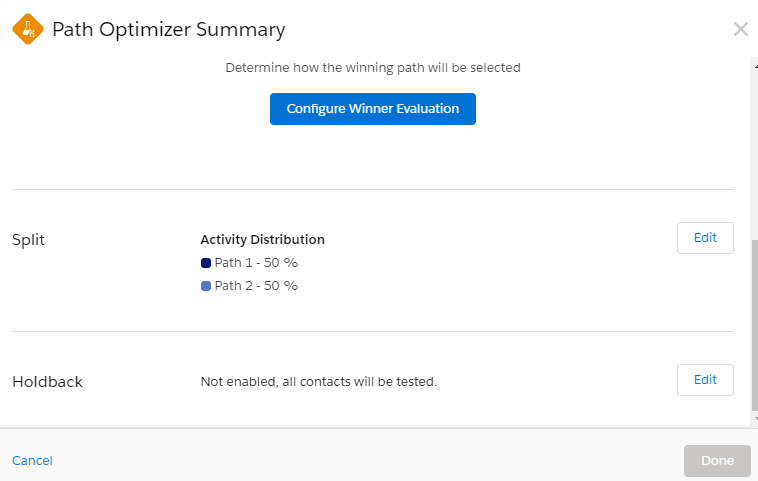
Winner Evaluation:
There are 2 ways that you can set the winner path, one is from auto selection feature and another one by Manual selection.
-
Email Engagement
- Click rate: The path with the highest email click rate wins.
- Open rate: The path with the highest email open rate wins.
- Unsubscribe rate: The path with the lowest email average unsubscribe rate wins.
- Note: If you select Email Engagement you have to specify time (minimum an hour).
- Manual selection: Once the journey is active, come back at any time to manually select a winner.
Split
Here you have to specify how many paths you want to test, ranging from 2 to 10.Once you define the number of paths, it will split equally by default, but you also have the option to customize further.
Holdback:
This will be enabled only when your journey schedule is selected as Run Once. Here you have the option to define percentage of contacts to test and holdback until a winner is selected.
Note: Even for the Email Engagement selection you have the option to make a specific path as winner, before declaring.
Sample journey:

In this journey example, I have scheduled and set 50% of contacts to test and define 3 paths which are equally distributed.
In the below image where you see "Select Winning Path", you can select the path and make that one as a winner.

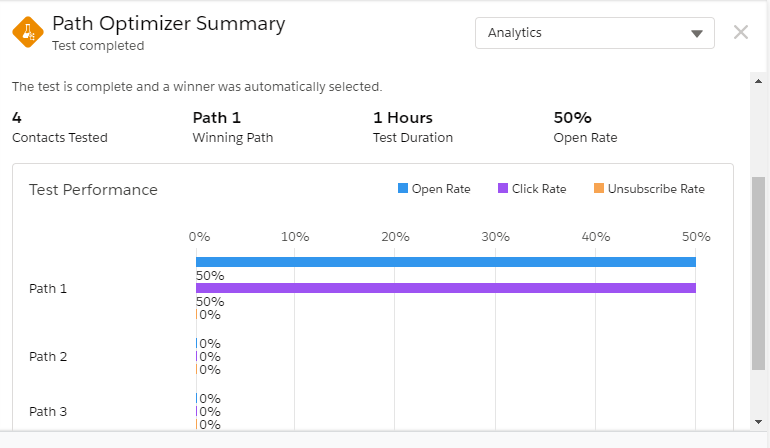
You will see the winner path like below after elapsing the time.
Best practices:
- Provide minimum 1 day of wait period before winner selection.
- To get the better results, make sure you test with more contacts.